Lotus365 App Not Opening? Fixes and Solutions
You tap the Lotus365 app and nothing happens, it crashes immediately, freezes on a loading screen, shows a blank white screen, or never gets past the splash screen at all. This is one of the most common issues app users run into, and in the large majority of cases it’s fixable in a few minutes without reinstalling anything. This guide starts with the fastest fixes first, then works through device issues, reinstall steps, and login-related causes that can look like an app crash but aren’t.
For general app information, visit the Lotus365 App hub page.
Table of Contents
Why the App Won’t Open
Most “app not opening” issues fall into one of four buckets: a temporary glitch that a restart fixes, a device-side issue like storage or an outdated OS, a corrupted or outdated install of the APK itself, or an account and login issue that only looks like an app crash because it happens right at launch. Working through the sections below in order, starting with the simplest, resolves the problem for most users well before reaching the last section.

Quick Fixes to Try First
Start here before anything more involved.
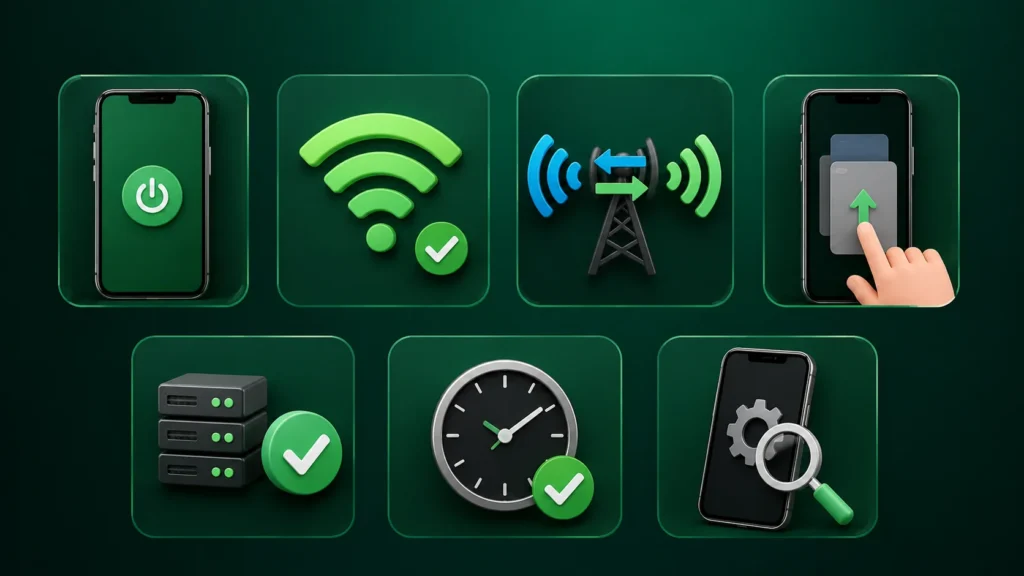
- Restart the phone. This clears temporary memory issues and is the single most effective first step for almost any app that won’t open.
- Check your internet connection. A dead or extremely weak connection can cause the app to hang on launch without any clear error message.
- Switch between Wi-Fi and mobile data. If one network is having issues, the app may open fine on the other.
- Close the app fully and reopen it. Don’t just leave it running in the background; swipe it away from your recent apps list before relaunching.
- Check if the app is down or under maintenance. Occasionally the issue isn’t on your end at all. Check for any maintenance notice on the official site before assuming it’s a device problem.
- Verify your date and time are correct. An incorrect device clock can interfere with secure connections and cause apps to fail silently on launch.
If none of these resolve it, move on to the device-level checks below.
Device and Storage Fixes
Clear app cache. Go to Android Settings, find Lotus365 under Apps, and clear its cache (not its data, which would sign you out). This resolves a large share of freeze and crash issues without affecting your account.
Free up storage space. Low device storage can cause apps to crash or fail to launch properly. Check your storage settings and clear space if you’re running low.
Update your Android OS. An outdated operating system can become incompatible with newer app builds over time. Check for a pending system update in your device settings.
Update the app to the latest version. Running an old version is one of the more common causes of unexplained crashes. See our Lotus365 App Update Guide for the full update process.
Make sure permissions are allowed. Check that Lotus365 has the permissions it needs under your device’s app settings. A blocked permission can sometimes prevent the app from launching correctly.
Disable battery saver or aggressive background restrictions if needed. Some Android manufacturers apply strict battery optimization that can prevent apps from launching smoothly. Temporarily disabling battery saver, or exempting Lotus365 from background restrictions, can resolve persistent freezing.
Reinstall and APK Fixes
If the quick fixes and device checks don’t resolve it, the issue may be with the install itself.
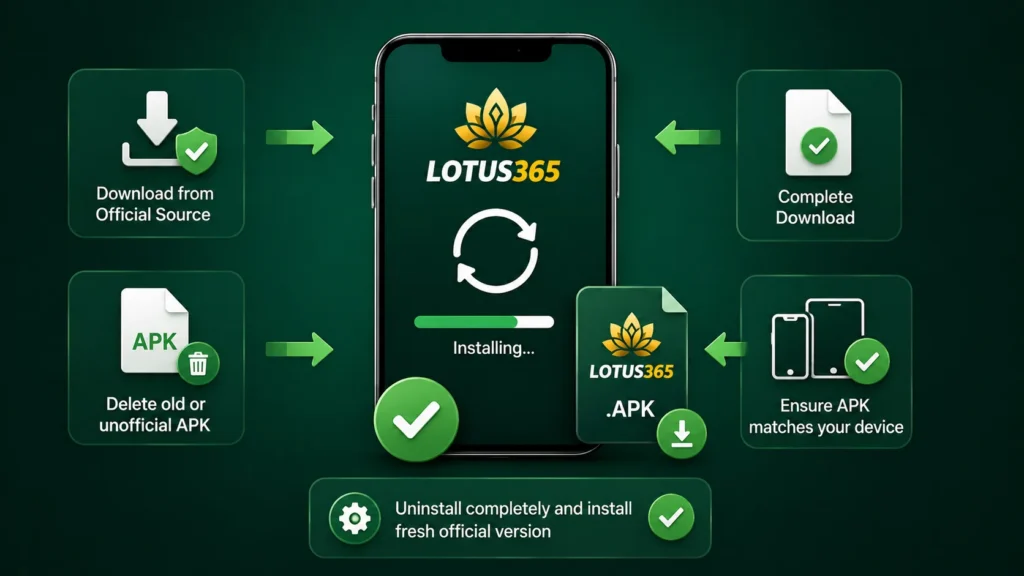
- Reinstall the app from the official source. A clean reinstall resolves most corrupted-install issues. See our APK install guide for the full safe installation process.
- Remove suspicious or old APK versions. If you have an old or unofficial APK file still sitting in your Downloads folder, delete it before reinstalling to avoid confusion during setup.
- Check whether the APK file was fully downloaded. An interrupted download can produce a file that installs but doesn’t run correctly. If you’re unsure, redownload from the Android download guide.
- Make sure the APK matches your device. Very old or unusual devices occasionally run into compatibility issues; the mobile browser version is a reliable fallback if this turns out to be the cause.
- Avoid modified files or duplicate builds. If more than one version of Lotus365 has ever been installed on your device, conflicting files can cause launch failures. A full uninstall followed by a fresh official install clears this.
Login Problems That Look Like App Errors
Sometimes the app opens fine, but it hangs, freezes, or appears to crash right at the login screen. This is usually an authentication issue, not an app issue.
- Re-enter your ID and password manually. Autofill errors from a saved, outdated password are a common hidden cause.
- Reset your password if needed. If you’re unsure whether your saved password is still correct, resetting it directly is faster than repeated guessing.
- Request OTP again. If a one-time code is required and isn’t arriving, wait for the resend timer before requesting a new one.
- Clear cache and retry. The same cache-clearing step from the device fixes section above often resolves login-stage freezes specifically.
- Try another network or device. This helps isolate whether the issue is your connection, your device, or your account.
- Make sure your account is active. An inactive or temporarily locked account can sometimes present as a stuck login screen rather than a clear error message.
For the full breakdown of login steps and password recovery, see our Lotus365 App Login Guide.
Security Warning
If the app started failing right after installing it from somewhere other than the official website, that’s worth taking seriously rather than just troubleshooting around it.
- Use only the official app or verified page. This is the single biggest factor in avoiding install problems in the first place.
- Avoid fake clones or forwarded APKs. Files shared through WhatsApp, Telegram, or third-party blogs cannot be verified as genuine.
- If the issue started after installing a third-party build, uninstall it immediately. Reinstall using only the official Lotus365 App page, rather than trying to fix a file from an unverified source.
Lotus365 App Not Opening?
Why is the Lotus365 app not opening?
Most commonly a temporary glitch fixed by restarting your phone, a device or storage issue, an outdated app version, or occasionally a login-stage freeze that looks like a crash. Working through the quick fixes first resolves the majority of cases.
What if the app shows a white screen?
A white or blank screen on launch is usually a cache or connection issue. Clear the app’s cache, confirm your internet connection is stable, and restart the app. If it persists, try a full device restart.
Will clearing cache delete my account?
No, Clearing cache only removes temporary stored files, not your account data. Just make sure to clear cache specifically, not app data, which would sign you out and reset local settings.
Should I reinstall the app?
If quick fixes and device checks don’t resolve the issue, a clean reinstall from the official source is a reasonable next step and resolves most install-related problems.
What if login works on browser but not the app?
This points to an app-specific issue rather than an account problem, most often an outdated app version or a corrupted install. Update the app first, and if that doesn’t help, follow the reinstall steps above.