How to Install Lotus365 APK Safely
The Lotus365 app isn’t distributed through Google Play, so installing it works differently from most apps on your phone. That’s completely normal for betting and casino platforms, but it does mean the file source and the Android permissions involved deserve a bit more attention than a typical Play Store install. This guide walks through how to install the Lotus365 APK safely, with a focus on the security side: what to check before you download, exactly what “unknown sources” means, and how to spot a fake file before it becomes a problem.
If you haven’t downloaded the APK yet, our full Android download guide covers that step in detail. This guide picks up from there and focuses specifically on installing it the right way. For the main app overview, see the Lotus365 App Hub page.
Table of Contents
Before You Install
Safety Checks First
A few habits make the difference between a safe install and a risky one.
- Use only the official download page. The APK should come from the official Lotus365 website and nowhere else.
- Avoid mirror sites, forwarded APKs, and random blogs. Copycat domains and third-party download pages are the most common source of tampered files.
- Check that the domain and branding match. Before downloading, confirm the URL in your address bar is correct and the page looks like the official Lotus365 site, not a lookalike.
- Don’t install files from WhatsApp or Telegram unless verified. Even if a file is labeled “Lotus365 APK,” a forwarded file can’t be confirmed as untouched. Download directly instead.
- Scan the file if your device warns you. If Android or a security app flags the file, don’t ignore it. Redownload from the official source and scan again before proceeding.
What You’ll Need
- An Android phone. iPhone users should use the mobile browser version of the site instead.
- Enough free storage. Check your storage settings and clear space if needed before downloading.
- An updated browser. A current version of Chrome or another major browser handles the download and permission prompts correctly.
- A stable internet connection. Interruptions mid-download are a common cause of corrupted or incomplete files.
- A device compatibility check. Most current Android phones run the app without issue; very old devices may struggle.
- Your login details are ready if you already have an account. If you’re new, you’ll register inside the app after installation. See the Lotus365 Register if you’d rather set up your ID first.
Step-by-Step Installation Guide
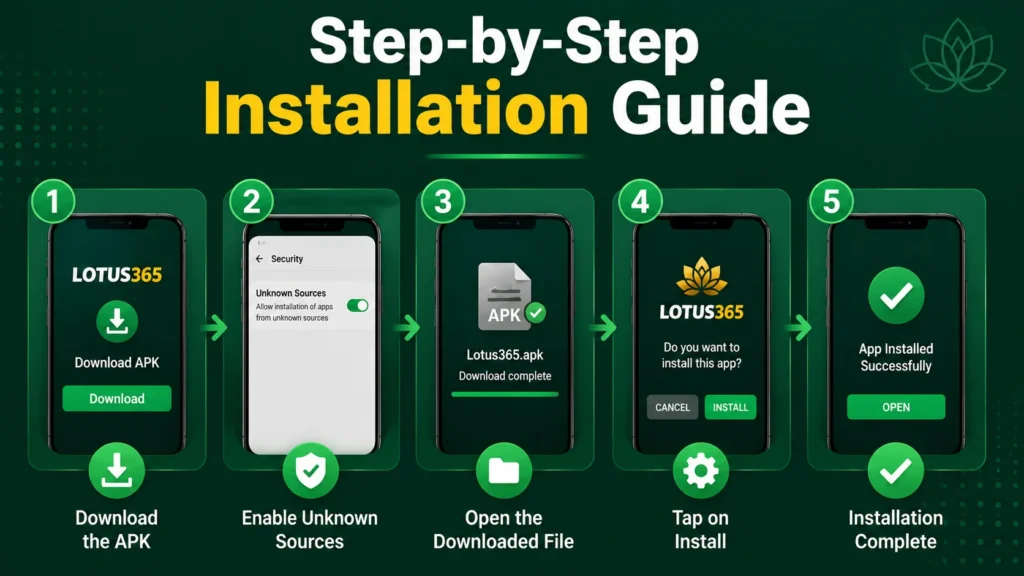
Step 1: Open the official website. Go to lotus365max.com directly in your Android browser, typed in yourself or from a saved bookmark.
Step 2: Download the Lotus365 APK. Find the Android download button on the homepage or the Lotus365 App page and tap it to start the download.
Step 3: Open the downloaded file. Once the download finishes, open the APK from your notification bar or your Downloads folder.
Step 4: Allow “Install unknown apps” for the browser only. Android will show a prompt blocking the install by default. This isn’t a warning about Lotus365 specifically, it’s a standard step for any app installed outside the Play Store. Enabling this permission applies only to the browser you used to download the file, not your entire device. The full process is covered in detail in the next section.
Step 5: Tap Install. Once the permission is granted, return to the file and tap Install. Confirm the prompt that follows.
Step 6: Wait for setup. Installation typically finishes within a few seconds on most Android phones. Avoid closing the screen or switching apps until it completes.
Step 7: Open the app and log in. Launch Lotus365 from your app drawer and log in with your existing account. New here? Follow the full Lotus365 login for step-by-step login instructions, including password recovery if needed.
How to Enable Unknown Sources
This permission is the part that trips up most first-time installers, so here’s the exact path.
- Go to Settings on your Android phone.
- Tap Apps or Security, depending on your Android version and phone manufacturer.
- Open “Special App Access” or “Install Unknown Apps.” The exact label varies slightly by device.
- Select Chrome, or whichever browser you used to download the APK.
- Turn on “Allow from this source.” This unlocks installation just for that browser.
- After installation, you can turn it off again if you prefer. The permission isn’t required once Lotus365 is installed, so switching it back off afterward is a reasonable extra step if you’d rather keep it disabled by default.
This process only needs to be done once per browser. If you reinstall the app later using the same browser, the permission should still be active.
Common Errors and Fixes
APK not installing. Usually caused by an interrupted or incomplete download. Delete the file and download a fresh copy from the official site before trying again.
App blocked by Play Protect. Google Play Protect scans apps installed outside the Play Store by default. If it flags Lotus365, you can review the warning and choose to proceed, since this is expected behavior for any non-Play Store app, not a sign the specific file is unsafe, as long as it came from the official download page.
“App not installed” error. This often happens when an older version is still partially present on your device. Uninstall any previous version first, then install the fresh download.
Not enough storage. Clear space in your device settings and redownload the file rather than trying to complete a partial install.
File not downloading fully. A weak or interrupted connection is the usual cause. Switch networks if possible and try the download again from the beginning.
App opens but crashes after install. Often linked to an outdated version or a device that needs a restart. Restart your phone, then try again. If the issue continues, uninstall and reinstall the latest version from the official site.
Login issue after install. If installation succeeded but login isn’t working, the issue is almost always account related, not install related. Check the Lotus365 Login guide for common fixes, or contact Lotus365 support directly.
Install Lotus365 APK Safely
Is the Lotus365 APK safe?
Yes, as long as it’s downloaded from the official Lotus365 website. Since the app isn’t distributed through the Play Store, the file source is what determines safety, not the app itself. Avoid mirror sites and forwarded files.
Why do I need unknown sources?
Android blocks app installs from outside the Play Store by default as a general security measure. Enabling “install unknown apps” for your specific browser is a standard, expected step for installing Lotus365 or any similar app.
Can I install it on any Android phone?
The app supports the large majority of current Android devices. Very old phones or heavily outdated Android versions may run into compatibility issues, in which case the mobile browser version is a reliable alternative.
What if the APK does not install?
Check that “install unknown apps” is enabled for the browser you used, confirm you have enough storage, and try downloading a fresh copy of the file if the first attempt was interrupted.
Is this different from the app page?
Yes, the Lotus365 App page is the main hub for the app overall, while this guide focuses specifically on installing the APK safely, including permissions and security steps in more depth.