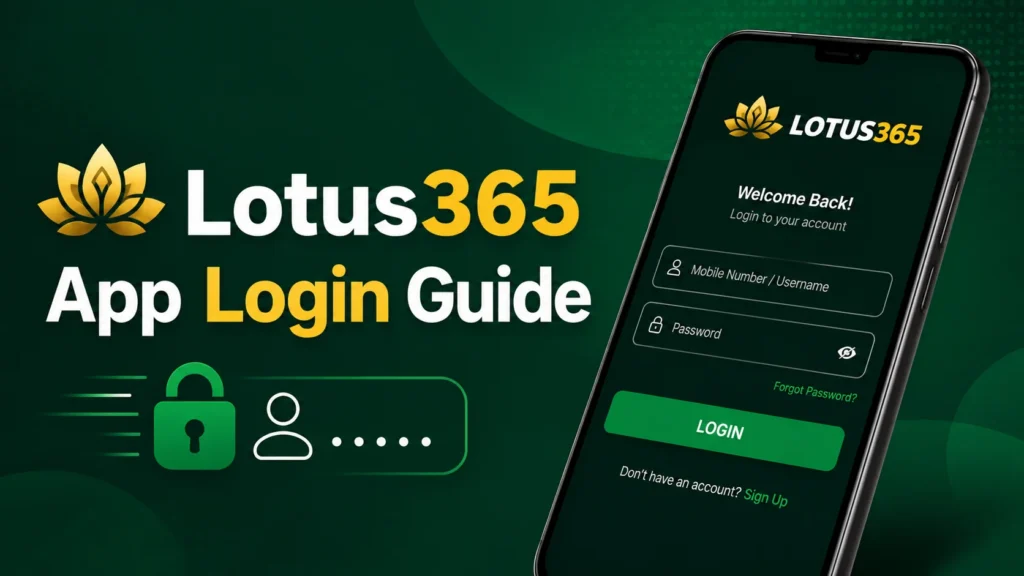
Lotus365 App Login Guide
This guide shows you how to log in to the Lotus365 app safely and quickly, whether you’re opening it for the first time after installing or signing back in after a break. Depending on how your account is set up, you’ll need your registered ID or mobile number, your password, and possibly a one-time OTP code to get in.
If you haven’t installed the app yet, this guide assumes you have. Head to the Lotus365 App page to get started first, or see the full login walkthrough for broader instructions covering both app and desktop access.
Table of Contents
What You Need Before Login
Before opening the app, make sure you have the following ready:
- Your registered Lotus365 ID or mobile number. This is whichever detail you used when creating your account.
- Your password. Set at registration, and case sensitive.
- OTP access, if enabled on your account. Keep your registered phone nearby in case a one-time code is required.
- A working internet connection. A weak signal is one of the most common causes of login screens that hang or fail silently.
- The app was installed and updated. If you haven’t installed it yet, see our guides on downloading the app and installing the APK safely.
Once these are in place, logging in only takes a few seconds.
How to Log In Step by Step
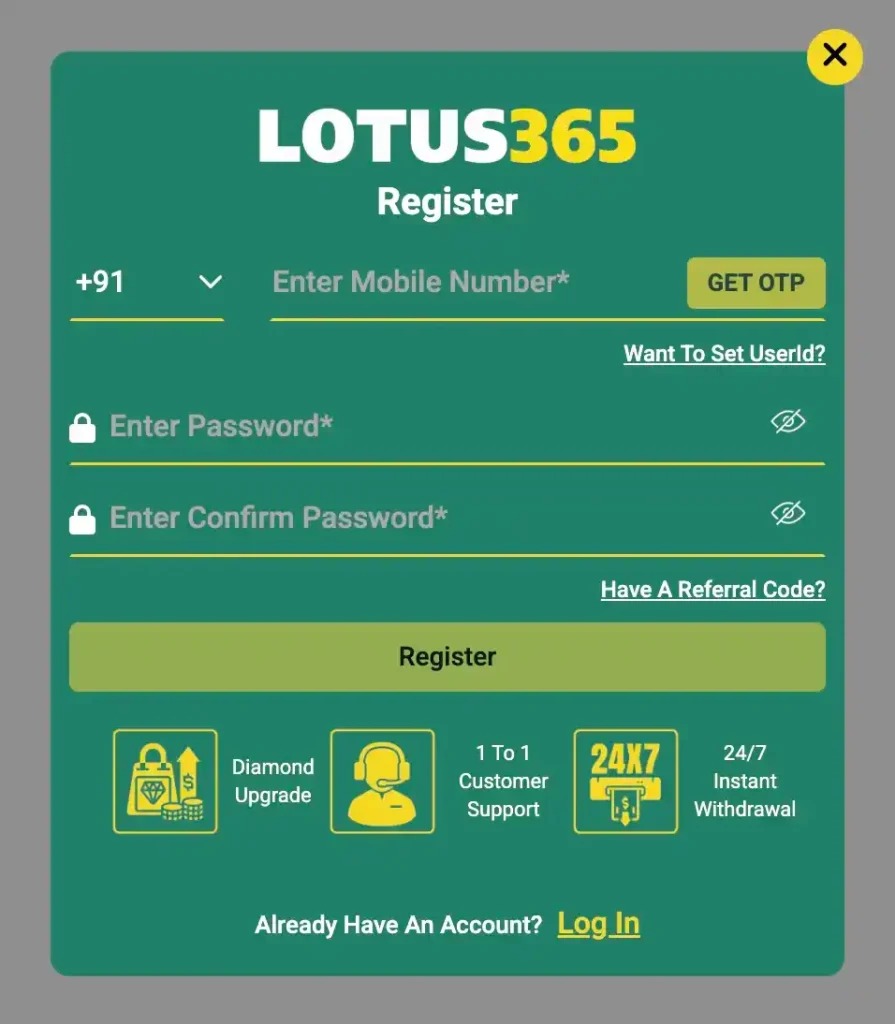
Step 1: Open the Lotus365 app. Tap the app icon on your home screen or app drawer.
Step 2: Tap Login. This is usually shown right on the app’s opening screen.
Step 3: Enter your ID, mobile number, or email. Use whichever identifier you registered with.
Step 4: Type your password. Double check for typos before submitting, especially if your keyboard has autocorrect or autocapitalize turned on.
Step 5: Enter OTP if asked. Some accounts require a one-time code sent by SMS as an added security step. Enter it exactly as received.
Step 6: Tap Submit or Login. This confirms your details and starts the sign-in process.
Step 7: Access your dashboard. Once verified, you’ll land directly on your dashboard with your balance, active bets, and account settings all visible.
Forgot Password and OTP Help
Forgot password. Tap “Forgot Password” on the login screen, enter your registered mobile number or email, and follow the reset link or code sent to you. Set a new password and log in as normal.
OTP not received. Wait a minute or two before requesting again, since delivery delays are common on busy networks. Check that your registered number is correct and has a signal. If it still doesn’t arrive, try the email reset option if one is available.
Incorrect password. This is often a typo or an old, forgotten password rather than an account issue. Use “Forgot Password” to reset it directly instead of guessing repeatedly.
Account verification prompts. Occasionally you’ll be asked to re-verify your identity, usually after a long period of inactivity or a security flag. Follow the prompt as shown; this is a normal protective step, not a sign anything is wrong.
The login screen keeps reloading. This is usually a connectivity issue rather than an account problem. Switch between Wi-Fi and mobile data, and close and reopen the app if it persists.
Common Login Problems and Fixes
Wrong credentials. Double-check your ID or mobile number and password before retrying, rather than repeating the same attempt.
Caps Lock on. An easy one to miss, especially on a physical keyboard. Check before assuming your password itself is wrong.
Saved autofill errors. Saved passwords in your browser or keyboard app can go stale if you’ve changed your password since. Clear the saved entry and type your current password manually.
Slow internet. A weak connection can cause the login request to time out. Switch networks and try again.
App not updated. An outdated app version can cause login failures that look like account issues but aren’t. Update to the latest version from the official source before troubleshooting further.
Browser cache issue. If you’re logging in through a browser rather than the app, a full or outdated cache can interfere. Clear your browser’s cache and cookies, then reload the page.
Account locked or inactive. Multiple failed login attempts can trigger a temporary lock as a security measure. Wait 15 to 30 minutes before trying again, or contact support if it persists.
OTP delay. Network congestion is the most common cause. Wait for the resend timer to expire before requesting a new code rather than repeatedly tapping resend.
If none of these resolve it, reach out through Lotus365 support with details of what you’ve already tried.
Security Tips
- Log in only from the official app or verified site. Bookmark the correct link and avoid clicking login links sent through chat apps.
- Don’t share your password with anyone. No genuine support agent will ever ask for it.
- Avoid random Telegram or WhatsApp login links. These are a common source of phishing attempts made to look like official Lotus365 pages.
- Use a private device when possible. Public or shared devices carry more risk of saved credentials being accessed by someone else.
- Log out after use on shared phones. Don’t rely on the app staying open as your only security measure on a device other people can access.
Lotus365 App Login
How do I log in to the Lotus365 app?
Open the app, tap Login, enter your registered ID or mobile number and password, enter an OTP if prompted, and then tap Login to reach your dashboard.
What if I forgot my password?
Tap “Forgot Password” on the login screen, verify your identity through your registered mobile number or email, and set a new password.
Why am I not getting OTP?
This is usually a network delay or a mismatched registered number. Wait a minute before requesting again, and confirm your number is correct and has signal.
What if my ID does not work?
Double check for typos in your ID or mobile number first. If it still fails, use “Forgot Password” to confirm the account exists, or contact support if you’re unsure which detail you registered with.
Can I log in from both the app and browser?
Yes, your Lotus365 ID works across the app and the mobile or desktop browser version, and your balance and activity sync across all of them.