
Lotus365 Deposit – How to Add Money to Your Wallet
Adding funds to your Lotus365 wallet is a short, manual verification process pay via bank transfer, QR scan, or UPI, upload your payment screenshot, and your balance updates once the payment is verified. This guide walks through every deposit method, realistic processing times, and fixes for the most common issues users run into.
Before you deposit, make sure you have an account. If you haven’t registered yet, see the Lotus365 Register. Already have an ID? Head to Lotus365 Login first.
How to Deposit Money on Lotus365
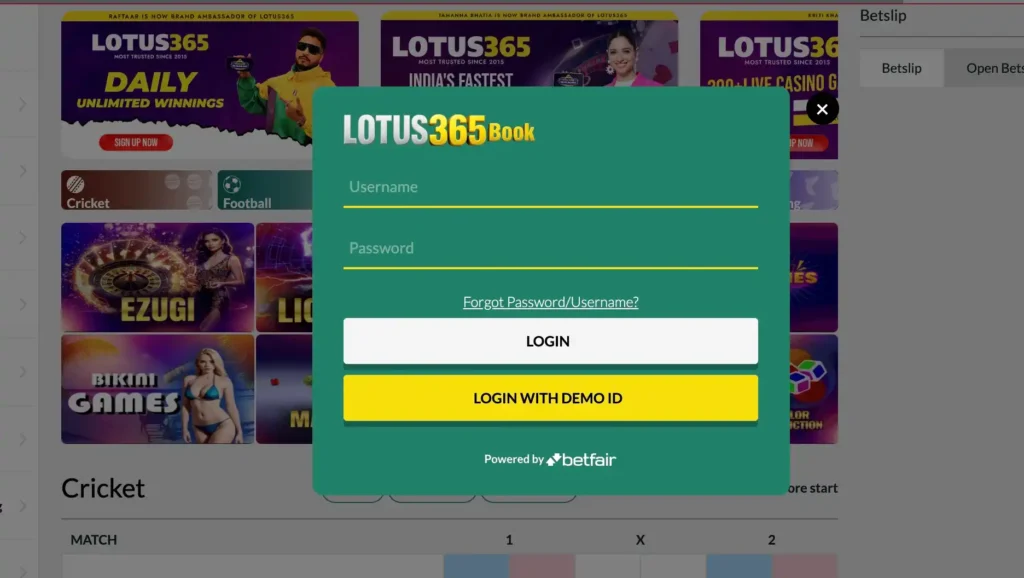
Step 1 – Go to the Official Platform Visit the official website lotus365max.com directly. Do not use a link shared via SMS, WhatsApp, or social media unless you’ve verified it points to the official domain.
Step 2 – Log In or Register If you already have an account, log in. If not, the first account creation takes under two minutes.
Step 3 – Open the Wallet or Deposit Section Once logged in, go to the Wallet or Deposit section from your dashboard.
Step 4 – Choose Your Payment Method Select one of the available deposit methods: bank transfer, QR code scan, or UPI ID payment. Each is detailed below.
Step 5 – Complete the Payment Follow the on-screen details for your chosen method and complete the transaction from your banking app or UPI app.
Step 6 – Upload Your Payment Screenshot After paying, upload a clear screenshot of the successful transaction as proof of payment.
Step 7 – Wait for Verification Your deposit is manually verified and credited to your wallet typically within 5 minutes, up to 10 minutes during peak traffic.
Step 8 – Check Your Wallet Balance Once verified, the amount reflects in your Lotus365 wallet and is ready to use across sports betting, live casino, and slots.
Deposit Methods Available
1. Bank Transfer
Go to the Wallet/Deposit section, where the current official bank account details are displayed. Transfer the amount directly from your banking app or net banking portal to the account shown, then upload your payment screenshot for verification.
2. QR Code Scan & Pay
A scannable QR code is provided directly in the deposit section. Open any UPI app, scan the QR code, confirm the amount, and complete the payment. Upload your screenshot once the payment is successful.
3. UPI ID Payment
A UPI ID is also provided in the deposit section as an alternative to scanning. Enter the UPI ID in your payment app, confirm the amount, complete the transfer, and upload your screenshot the same way.
| Method | How It Works | Screenshot Required |
|---|---|---|
| Bank Transfer | Transfer to the displayed account details. | Yes. |
| QR Code Scan | Scan and pay via any UPI app. | Yes. |
| UPI ID | Pay directly to the provided UPI ID. | Yes. |
Deposit Processing Time
- Normal conditions: deposits are verified and credited within 5 minutes
- Peak hours (major matches, high-traffic periods): allow up to 10 minutes
- Longer than 10 minutes? Contact the dedicated support team from the Contact Lotus365 page with your payment screenshot and transaction reference ready.
Important: Always Use the Latest Payment Details
QR codes, UPI IDs, and bank account details are updated frequently. This is a security measure, and it means:
- Never reuse old payment details from a previous deposit, a screenshot you saved earlier, or a bookmarked page
- Always pay using the QR code, UPI ID, or bank details currently shown on the official website at the time of your transaction not a version from yesterday or last week
- Do not repeat a payment using outdated details even if a previous transaction to that same account worked before
- If a payment method on the deposit page looks different from what you remember, that’s expected—refresh the page and confirm you’re using what’s currently displayed, not what’s inactive
Paying to an outdated or expired account can result in a failed or unverifiable deposit, since it may no longer be monitored for confirmations.
Common Deposit Problems & FAQs
Deposit amount not credited after payment
This is usually a verification delay, not a lost payment. Wait for the standard 5–10 minute window first. If it’s been longer, contact support with your payment screenshot, transaction ID/UTR, amount, and the time of payment. Do not attempt the payment again until support confirms the status.
UPI payment failed or got declined.
This is typically a bank-side or UPI app issue rather than a Lotus365 issue. Check your bank balance and UPI app status, confirm your UPI PIN was entered correctly, and try again using the currently displayed UPI ID or QR code. If the amount was deducted despite the “failed” message, it will usually auto-reverse to your bank within a few hours—if it doesn’t, contact your bank first, then Lotus365 support with proof.
Wrong UPI ID, QR code, or payment method selected
If you paid to an incorrect or outdated UPI ID/QR code, the payment may not be traceable to your account. Immediately contact support with your transaction screenshot, UTR/reference number, and account details — do not attempt to send the same amount again to the correct details until this is resolved, to avoid confusion over duplicate payments.
Insufficient balance in the bank or wallet
Check your bank account or UPI-linked account balance before initiating the transfer. If a partial deduction occurred due to insufficient balance, no valid transaction is generated—this typically won’t reach Lotus365 at all, so no credit will show, and no support action is usually needed.
Deposit limit exceeded
Some accounts have deposit limits in place, either as a platform-wide policy or a responsible-gambling limit you’ve set yourself. Check the limit shown in your Wallet section. If you believe the limit is incorrect or want it adjusted, contact support—note that self-set responsible-gambling limits may have a cooling-off period before they can be increased, by design.
Transaction stuck in pending or processing state
Most pending transactions clear within the standard 5–10 minute window as verification completes. Avoid refreshing repeatedly or submitting a new payment while one is still pending. If a transaction stays in “pending” beyond 10–15 minutes, contact support with your UTR/transaction ID rather than retrying the payment.
Session timeout during payment
If your Lotus365 session times out mid-payment, your banking transaction may still complete independently on your bank/UPI app’s side. Log back in, check your wallet balance first, and check your bank/UPI app’s transaction history before assuming the payment failed. If money was deducted but not reflected after 10 minutes, contact support with proof rather than repeating the payment.
Bank/server delay causing late credit
Occasionally, delays originate from your bank’s or UPI provider’s server rather than Lotus365. If verification is taking longer than the normal window, this is the most common cause. Support can manually check the transaction status if you provide the UTR/reference number and timestamp.
Repeated retries causing duplicate or failed attempts
Retrying a payment multiple times in quick succession — especially before confirming whether the first attempt actually failed — is one of the most common causes of confusion and duplicate transactions. Always wait for a clear failure confirmation from your bank/UPI app before retrying, and never submit a second payment just because the Lotus365 page hasn’t updated yet.
User not following the in-app deposit flow correctly
Always deposit through the Wallet/Deposit section inside your logged-in account—not through a payment link received externally, and not by paying an amount that doesn’t match what you entered on the deposit page. Mismatched amounts or payments made outside the proper flow are harder to trace and verify.
Using an expired QR code or outdated payment link
QR codes and payment links are updated frequently for security. Always use the QR code or link currently displayed on the official deposit page at the time of payment—never one saved from a previous session, a screenshot, or shared by a third party.
Missing transaction ID, UTR, or proof while contacting support
Support cannot verify or trace a payment without proof. Always keep your payment screenshot and note your UTR/transaction reference number, the exact amount, and the time of payment before reaching out—this is the single biggest factor in how quickly a deposit issue gets resolved.
Deposit Security Tips
- Only ever deposit through the official lotus365max.com website or app
- Always confirm the QR code, UPI ID, or bank details are the ones currently shown on the live deposit page—details change frequently
- Never share your payment screenshot, UTR, or account credentials with anyone claiming to be Lotus365 support outside the official Contact Lotus365 page
- Keep proof of every deposit until it’s confirmed and credited
- Set a personal deposit limit if you want extra control see our Responsible Gaming page